You cannot keep a system healthy if you are blind to it. Spreading traffic across servers and capping request rates only works when you know what your traffic is actually doing. When latency spikes at 3:00 AM, or an endpoint suddenly returns errors, you need to see exactly what is happening right now.
The tools that give you this visibility fall into three categories, often called the three pillars of observability: logs, metrics, and traces. Each answers a different kind of question. In this chapter, we will read a real access log, look at the HTTP numbers worth watching, follow a single request across multiple services, and cover the one rule you must never break: do not log secrets.
Reading an access log line
The oldest and simplest observability tool is the access log. This is a file where the server writes one line for every request it handles. Web servers like Nginx and Apache produce this by default. The most common layout is the combined log format. Once you can read one line, you can read millions of them.
Here is a single line in that format:
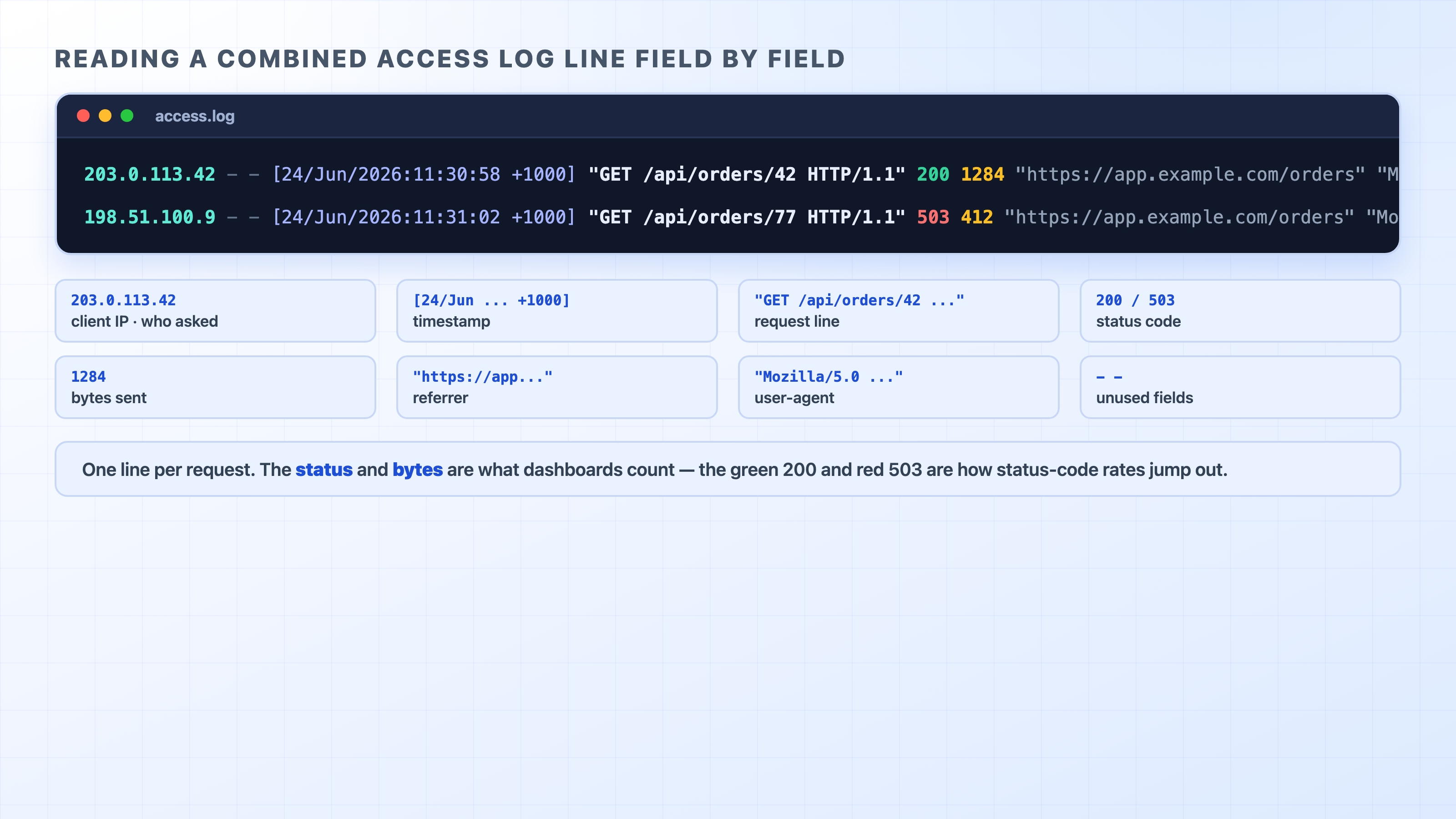
203.0.113.42 - - [24/Jun/2026:11:30:58 +1000] "GET /api/orders/42 HTTP/1.1" 200 1284 "https://app.example.com/orders" "Mozilla/5.0 (Macintosh; Intel Mac OS X 10_15_7)"
text
It looks dense, but it is just a fixed set of fields in a fixed order. Reading left to right:
203.0.113.42: The client IP address. If the server sits behind a load balancer or CDN, this might be the proxy's IP instead. That is why proxies add the X-Forwarded-For header we looked at earlier.
- -: Two fields rarely used today (identd and the authenticated user). A dash simply means "no value."
[24/Jun/2026:11:30:58 +1000]: The timestamp. This shows when the server finished handling the request, along with its UTC offset.
"GET /api/orders/42 HTTP/1.1": The request line. It includes the method, path, and HTTP version, telling you exactly what the client asked for.
200: The status code the server returned. This is usually the most useful field for spotting trouble.
1284: The number of bytes sent in the response body.
"https://app.example.com/orders": The Referer header. This shows the page the request came from.
"Mozilla/5.0 ...": The User-Agent. This identifies the client that made the request, like a web browser, curl, or a bot.
A combined access log line with every field labelled
A log is a record of discrete events. You get one line per action, each with a timestamp. This is both its strength and its weakness. When you need to know exactly what one specific request did, the log has the answer. The trouble is volume. A busy service writes thousands of these lines per second. No human can read them line by line, which is where the next two pillars come in.
The three pillars: logs, metrics, traces
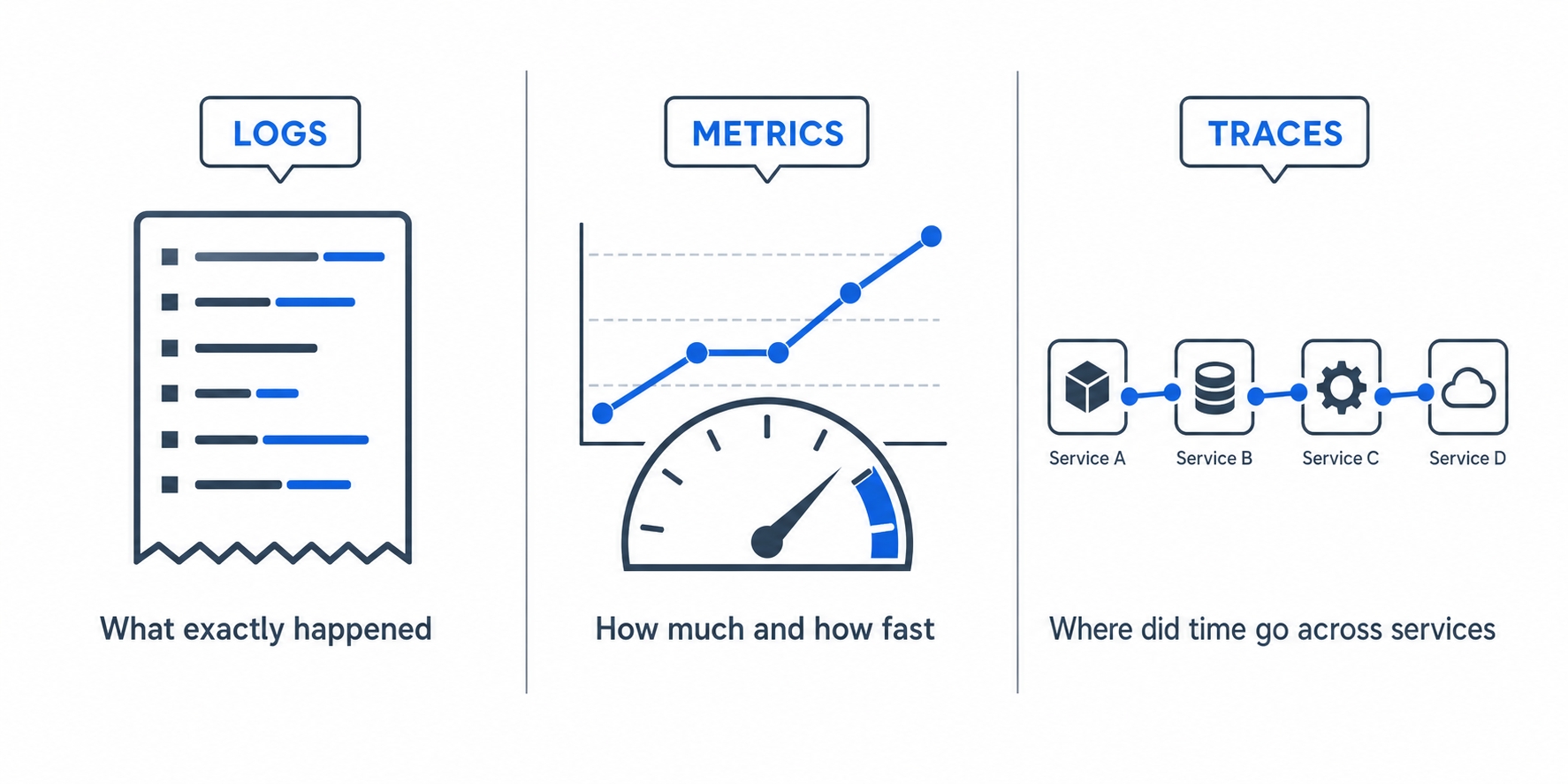
Logs are just one of three complementary views. Each answers a different question, and a healthy system usually relies on all three.
Logs metrics and traces each answer a different question
Logs answer the question: what exactly happened? They provide discrete, detailed events. You get one line per request with full context. This makes them perfect for digging into a specific failure, like finding every request that returned a 500 error in the last hour. However, they are poor for spotting trends because you would have to count the lines yourself.
Metrics answer the question: how much, and how fast? A metric is a number aggregated over time. Examples include requests per second, the error rate, or the average response time. Instead of storing every single event, a metrics system keeps running totals and summaries. This makes the data cheap to store for a long time and easy to chart. Metrics power the dashboards and alerts that warn you when errors suddenly jump.
Traces answer the question: where did the time go across multiple services? In a modern system, one user request might hop from an API gateway to an orders service, then to a payments service, and finally to a database. A trace stitches those hops together into a single timeline so you can see exactly which step was slow. A log line only shows you one service's perspective. A trace shows the entire journey.
A quick way to keep them straight: logs are for one event in detail, metrics are for many events summarized, and traces are for one event across many services. They overlap, and good tooling links them together, but each one shines when answering a different question.
The HTTP metrics worth watching
You could measure a hundred different things. For HTTP traffic, three families of metrics carry most of the useful signal.
Status-code rates. Group responses by their status range and watch the proportions. A rising 5xx rate (server errors) means your own code or infrastructure is failing. This is the alarm that should wake someone up at night. A rising 4xx rate (client errors) is more subtle. A spike in 404s might mean a broken link or a bad deployment, while a spike in 429s means clients are hitting your rate limits. The ratio of errors to total requests is usually more useful than the raw count, because raw counts naturally rise as traffic increases.
Latency percentiles. This measures how long requests take. The key idea here is that averages lie. If 99 requests take 10 milliseconds and one takes 5 seconds, the average is about 60 milliseconds. That sounds fine, but one user still waited 5 seconds. Percentiles tell the real story. The p50 (the median) is the typical experience: half of the requests are faster, and half are slower. The p95 means 95% of requests are at least this fast, leaving 1 in 20 slower. The p99 captures the worst 1%. Production teams watch p95 and p99 closely because these slower requests are where real users feel pain, even when the average looks healthy.
Throughput. This is how many requests you are handling, usually measured in requests per second. On its own, it is simply a measure of load. But it gives the other two numbers their context. A 1% error rate means something very different at 10 requests per second than it does at 10,000.
A healthy average latency with a bad p99 is not a contradiction. It is the normal state of almost every real system. Always watch the percentiles, not the average.
Following one request: request IDs and tracing
When a request fails after touching five different services, you need to find its footprint in five different logs. Searching each log by timestamp is painful and unreliable because many requests happen at the exact same instant. The fix is to give every request a unique label and carry it everywhere.
That label is a request ID. This is a unique string generated when a request first arrives, commonly passed in a header named X-Request-ID (or X-Correlation-ID). The first server to see the request generates the ID, writes it into its own logs, and passes it along in the header to every downstream service it calls. Each service does the same thing: log the ID, then forward the ID. Now, one search for that single ID pulls up every log line from every service for that exact request.
This is the foundation of distributed tracing. A trace takes that shared ID, attaches a timestamp and duration to each hop (each hop is called a span), and assembles them into one timeline. The result shows you not just that a request was slow, but which specific service made it slow. Maybe the API itself was fast, but a downstream database query took 800 milliseconds. Without a shared ID, you are guessing. With one, you know for sure.
You do not have to build this by hand. Reverse proxies can add X-Request-ID automatically, and tracing libraries propagate it for you. The important part is the mechanic: one ID, generated once, carried through every hop, and written to every log.
The rule you cannot break: never log secrets
Logs are useful precisely because they capture the details of a request. That is also what makes them dangerous. Requests carry credentials. If you log the whole request, you log the credentials too.
Earlier, we saw that a request authenticates itself with the Authorization header (Authorization: Bearer <token>) or a session Cookie. Those headers are the keys to the account. If you write them into a log file, anyone who can read that log holds a working credential. This could be a teammate, a log-aggregation service, or an attacker who breaches your logging pipeline. Real companies have leaked live API keys and session tokens this way, simply because a debug log dumped full request headers and that log was later exposed.
So there is a short list of things you must keep out of logs:
Authorization headers: These carry tokens, API keys, and basic authentication credentials.
Cookie and Set-Cookie headers: A session cookie is as sensitive as a password.
Passwords and tokens in request bodies: This includes a login POST request or a password-reset payload.
Personally identifiable information (PII): Emails, full names, addresses, and payment details, depending on what your privacy rules require.
The fix is redaction. Before a value is written to a log, replace the sensitive part with a placeholder. A logged header should look like Authorization: Bearer [REDACTED], not the real token. Most logging libraries let you register a redaction list so this happens automatically. This is important because the safest approach is to never let the raw value reach the log in the first place. When you set up logging for a new service, decide what gets redacted before you turn it on, not after the first leak.
Try it now
A metrics system records numbers like status codes and timing for every request. You can print those exact same numbers for a single request yourself using curl's -w (write-out) flag. This prints chosen fields after the response. The -s -o /dev/null part keeps the output quiet and throws away the response body, so you only see the measurements:
That is one data point a dashboard would record: a 200 status, a total time of about 39 milliseconds, and a 559-byte response. If you ran it a hundred times, you would have the raw material for a throughput number, an error rate, and a latency distribution.
curl can also break the timing down by phase. This is exactly what a trace does at a higher level: it shows you where the time actually went.
Each number is cumulative from the start of the request. DNS finished at roughly 3 milliseconds, the TCP connection at 13 milliseconds, the first byte arrived at 40 milliseconds, and the whole thing was done at 40 milliseconds. This is the same kind of breakdown a tracing span gives you, just for a single hop instead of a whole distributed request. We will lean on this -w trick again in the debugging section.
What's Next
That closes our look at Production HTTP. The next section turns to debugging, starting with the browser's Network panel. It is your fastest tool for seeing exactly what a request did.