DNS Explained: How Names Become IP Addresses | dalabs.academy
DNS: Turning Names into IP Addresses
Tung Nguyen
··
12 min read
Every chapter in the last section dealt in IP addresses, the numbers the network actually routes to. But you never type a number. You type example.com, and somewhere between pressing Enter and the TCP handshake we measured earlier, that name has to become an address. The system that does the translation is DNS, and it runs before any connection can open. This section follows a request from the name you type to a secured connection: DNS turns the name into an IP first, and then the next chapters add TLS and HTTPS on top.
Overview
DNS, the Domain Name System, is the internet's lookup directory. You give it a name and it gives you back an IP address, so the rest of the network machinery has a number to route to. The clever part is how it finds that answer: not from one giant lookup table, but by asking a short chain of servers, each one pointing closer to the answer, with caching at every step so the same question rarely has to travel far twice.
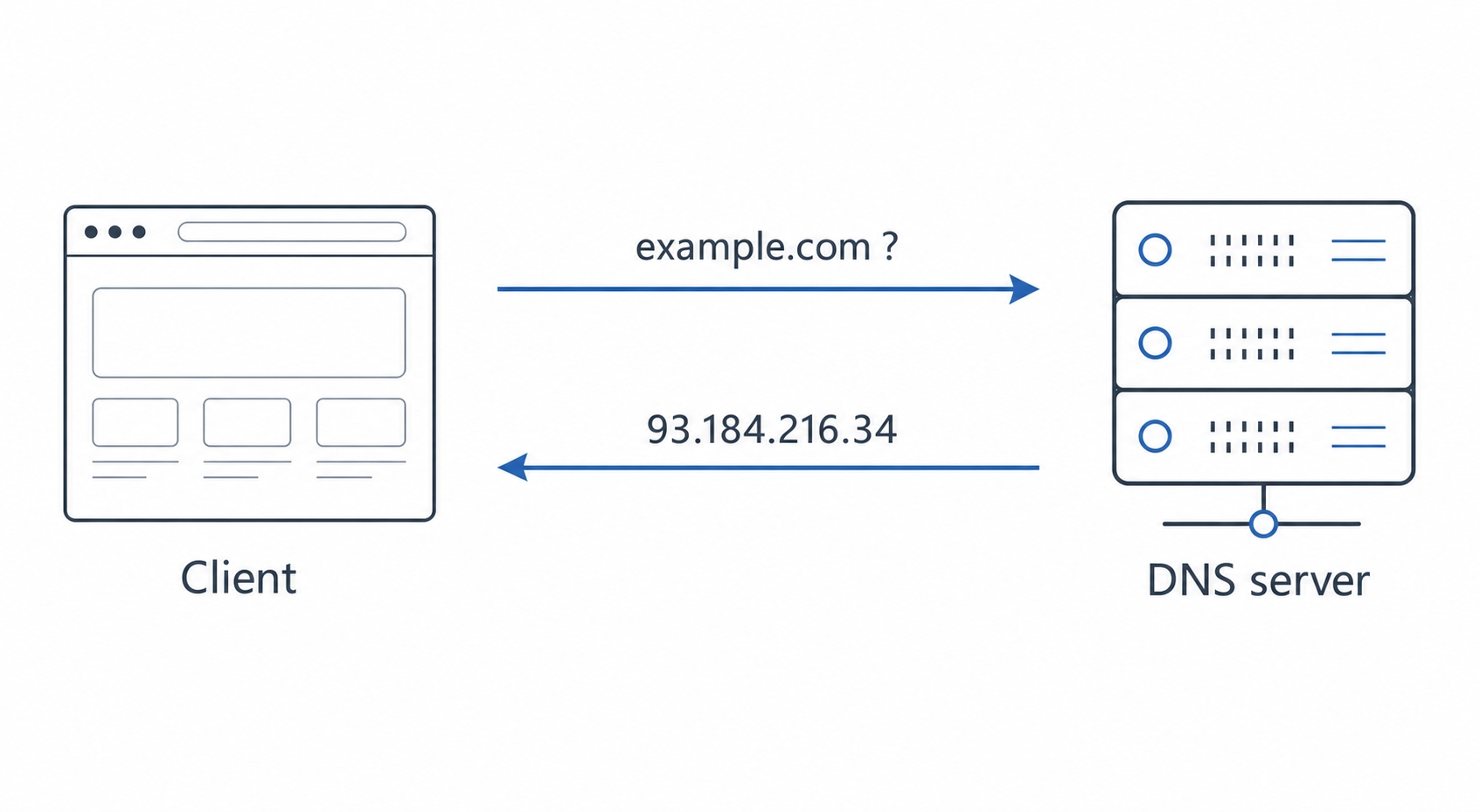
A browser asks DNS and gets back an IP address
Here is what we will cover:
How one lookup travels: from your browser's cache out to the servers that hold the answer
The record types you actually set and read: A, AAAA, CNAME, and MX
Why changing a DNS record "takes time to propagate," and how to inspect any lookup with dig
Follow one lookup
The clearest way to understand DNS is to follow a single question all the way through. So picture your browser, the moment you hit Enter on https://example.com. Before it can open a connection, it needs the IP address behind that name. Here is the trail it follows to get one. The figure above shows the gist: your browser asks DNS and an address comes back. Now we will walk what happens in between.
The fastest lookup is the one you do not have to do. So before anything leaves your machine, two local caches get checked.
The browser cache comes first. If you visited example.com a minute ago, your browser likely still remembers its IP and uses that straight away. No network, no waiting.
If the browser does not have it, the question goes to the operating system cache. Your OS keeps its own short-term memory of recent lookups too. On many systems a local service answers from this cache without going out to the network either.
When one of these caches has a fresh answer, the lookup ends right here. This is the common case for sites you have touched recently, and it is why DNS usually feels instant. Only when nothing local knows the answer does the real journey begin.
The resolver does the legwork
When the local caches come up empty, your machine hands the question to a recursive resolver: a DNS server whose job is to chase down the answer on your behalf. Usually this is run by your internet provider, though many people point at a public resolver instead, like Cloudflare's 1.1.1.1 or Google's 8.8.8.8.
The word recursive is the important one. You ask the resolver a single question, "what is the IP for example.com?", and it takes on the whole task of finding out, asking as many other servers as it needs, and comes back with one final answer. You ask once; it does the walking.
This is the part beginners often picture wrong. It is the resolver, not your browser, that visits the chain of nameservers below. Your browser asks one question and waits for one answer. All the back-and-forth with root, TLD, and authoritative servers happens out at the resolver, invisibly. So when people say "the browser looks up the DNS," what they usually mean is "the browser asks the resolver, and the resolver looks it up."
Walking the chain: root, TLD, authoritative
If the resolver has not cached this name either, it starts asking around. There is no single server that knows every name on the internet. Instead the answer is spread across a tree of nameservers, and the resolver walks down that tree one level at a time. It reads the name from right to left, narrowing the search at each step.
It starts at a root nameserver, the top of the tree. The root does not know example.com's address, and it is not supposed to. What it knows is who handles each top-level ending. So the resolver asks about example.com, and the root answers, in effect, "I do not have that, but for anything ending in .com, here are the servers to ask."
Next the resolver asks one of those TLD nameservers. TLD stands for top-level domain, the last label of the name: .com, .org, .net, .io, and so on. The .com nameserver does not know example.com's IP address either, but it knows the next signpost: "for example.com specifically, here are its authoritative servers."
Finally the resolver reaches an authoritative nameserver for example.com. This is the server that actually holds the records for the domain, the one whose owner controls when they set up the domain. It gives the real answer: example.com is at 93.184.216.34. That answer travels back to the resolver, which hands it to your machine, and now your browser finally has an IP to open a TCP connection to.
For now, think of it as asking for directions in a city you do not know. You do not ask one person for the exact address of a specific shop. You ask "which district sells electronics?", then in that district "which street?", then on that street you find the shop. Root points you to the right district (.com), the TLD server points you to the right street (example.com's nameservers), and the authoritative server is the shop that finally hands you the address. In real life browsers, operating systems, and resolvers cache aggressively, so most lookups skip most of these steps, but the full walk is the path the answer takes the first time.
One more thing the resolver does on the way back: it remembers. It stores the answer in its own cache so that the next person who asks for example.com gets it immediately, without walking the whole chain again. That caching is what keeps the root and TLD servers from being buried under every lookup on earth, and it is the idea the rest of this chapter builds on.
The records DNS hands back
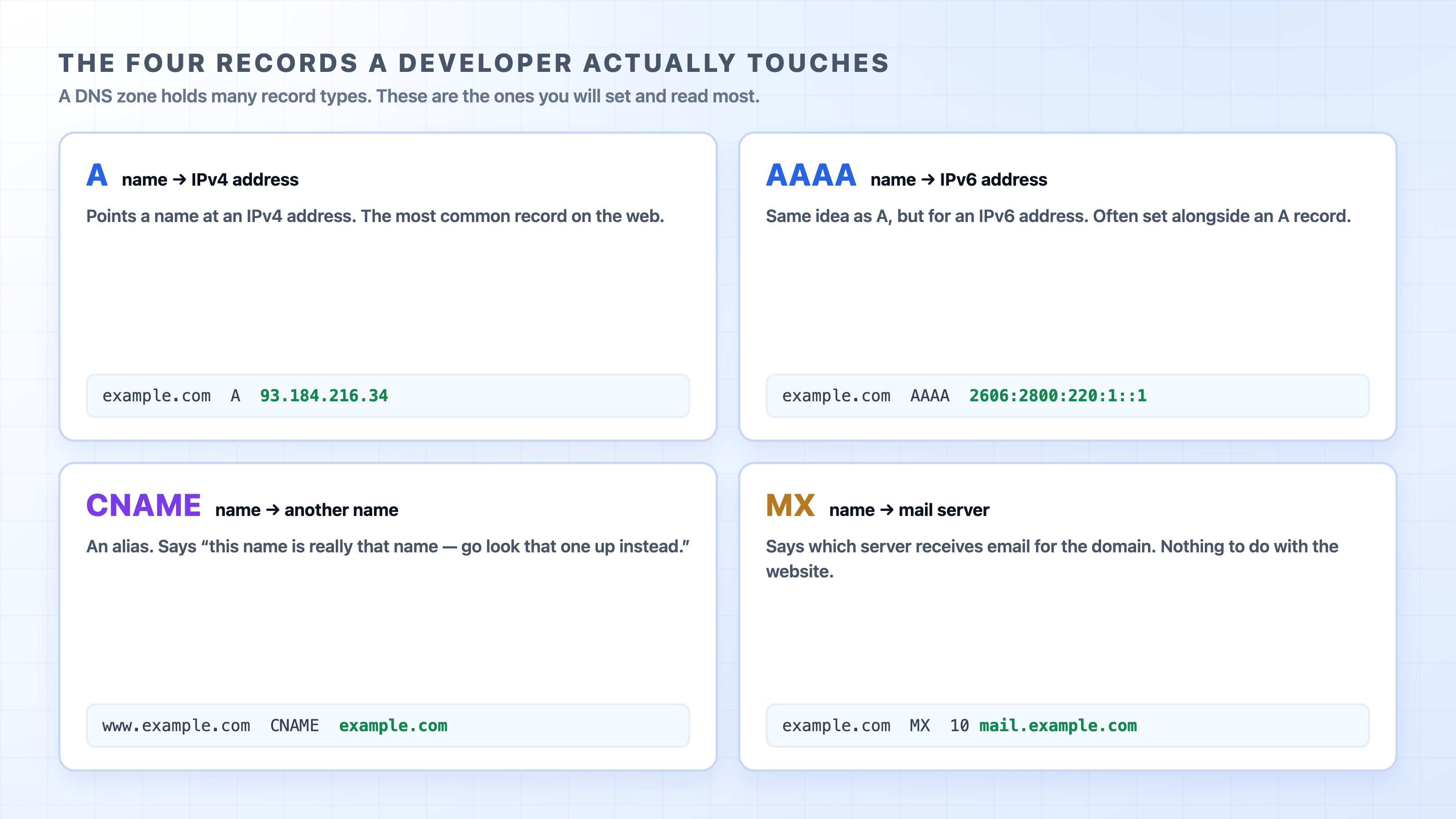
So far we have talked about DNS as if it only answers one kind of question: name to IPv4 address. That is the most common one, but a domain's DNS holds several kinds of entries, each called a record, and each record has a type that says what it maps to. Four of them cover almost everything you will touch as a developer.
The four DNS record types a developer uses most
An A record maps a name to an IPv4 address. This is the workhorse: example.com has an A record pointing at 93.184.216.34, and that is what every dig +short example.com we ran in the last chapter was reading.
An AAAA record does the same job for an IPv6 address. Remember from the IP chapter that IPv6 addresses are the long ones written with colons. A domain often has both an A and an AAAA record, so clients that prefer IPv6 can use it and the rest fall back to IPv4. (It is spelled with four A's because an IPv6 address is four times the size of an IPv4 one.)
A CNAME record is an alias. Instead of pointing a name at an address, it points a name at another name. A common setup is www.example.com as a CNAME to example.com: it says "this name is really that name, go look that one up instead." The resolver then resolves the target to get the actual IP. The practical win is that you set the real address in one place, and the alias automatically follows it.
An MX record points to the mail server that receives email for the domain, and it is worth calling out because it surprises people. The site example.com and its email can live on completely different servers. The A record decides where the website is; the MX record decides where the email goes. They are independent, which is why pointing your domain at a new host can move the website without touching the mail, or break the mail if you are not careful.
There are more record types, but these four are the ones you will create and read on a real project. If you ever see an unfamiliar type, the mental model holds: a DNS record is a typed mapping from a name to some value, and the type tells you what kind of value to expect.
TTL, caching, and why changes take time
We said the resolver caches every answer. But a cached answer can go stale: the domain's owner might move the site to a new IP, and a resolver still serving the old cached address would send people to the wrong place. DNS handles this with a number attached to every record: the TTL.
TTL stands for time to live, and it is how many seconds a cache is allowed to hold a record before it must throw it away and ask again. If example.com's A record has a TTL of 3600, every cache that picks it up may reuse it for one hour. After that the entry expires, and the next lookup goes back out to fetch a fresh copy. You will see the TTL right in the dig output later in this chapter; it is the number sitting between the name and the record type.
This is also the honest explanation for a phrase you have probably heard: "the DNS change hasn't propagated yet." When you update a record, the new value is live at the authoritative server immediately. But every resolver and OS and browser that already cached the old value keeps serving it until its TTL runs out. Some caches expire in seconds, some held a record with a long TTL and will keep the old answer for hours.
Propagation is not a single global push, and this trips up a lot of people. Nothing broadcasts your change out to the world. There is no central switch that flips everyone to the new value at once. What is really happening is that many independent caches, scattered across providers and devices, each expire their old copy at their own time and pick up the new one on their next lookup. "Waiting for propagation" is really waiting for the slowest relevant cache to hit its TTL. The practical tip falls right out of this: if you know you are about to change a record, lower its TTL a day ahead, so caches are holding short-lived copies when the change lands and pick up the new value quickly.
When the bug is just stale DNS
This caching behavior is also behind a class of bugs that can eat an afternoon if you do not recognize it. You point a domain at a new server, load the site, and still get the old one. Or a teammate sees the new version while you stubbornly see the old. Nothing in your application code is wrong. A cache somewhere between you and the authoritative server is still handing out the previous answer, and it will keep doing so until its TTL expires.
The tell is that the problem follows the machine or the network, not the code. The first move is to ask DNS directly what it currently returns, instead of trusting the browser, which adds its own caching on top. The dig command does exactly that, and querying a public resolver explicitly lets you compare what different caches are serving:
dig +short example.com
dig +short example.com @1.1.1.1
bash
The first asks your default resolver; the second asks Cloudflare's 1.1.1.1 directly. If they disagree, you are looking at a caching gap, not a server problem, and the fix is patience or a cache flush, not a code change. You can clear your operating system's DNS cache to force a fresh lookup; on macOS that is sudo dscacheutil -flushcache, and on most Linux systems it is a systemd-resolve --flush-caches or a restart of the resolver service. Browsers cache separately and may need their own clear or a restart. Knowing the answer might be stale, rather than wrong, is most of the battle.
Try it now
You do not have to take any of this on faith. dig (domain information groper) ships on macOS and Linux and lets you ask DNS questions directly and read the raw answers. Open a terminal and try these.
The cleanest output comes from +short, which prints just the answer:
dig +short example.com
bash
That gives you back the IP address and nothing else, the same lookup your browser does silently. Drop the +short to see the full picture:
dig example.com
bash
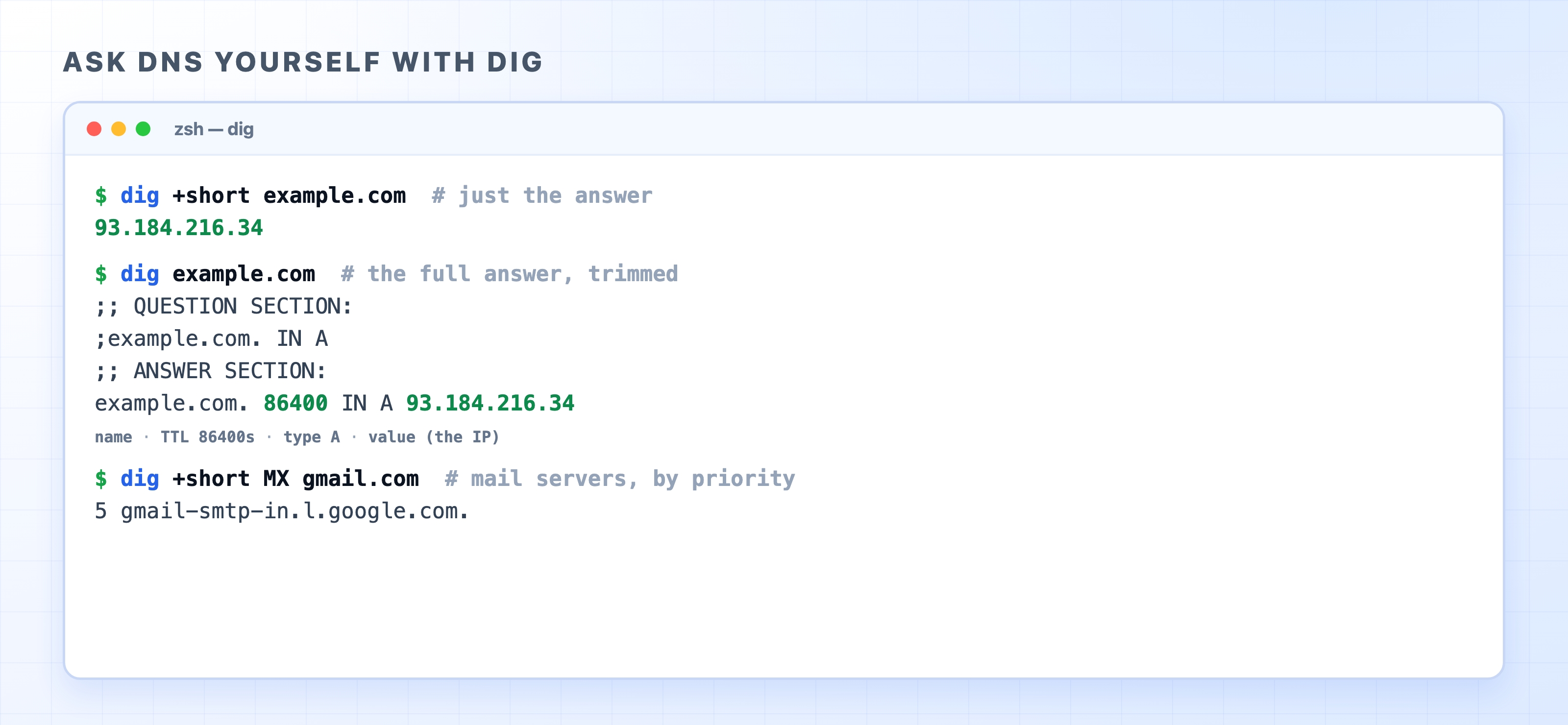
Reading DNS answers with the dig command
In the full output, find the ANSWER SECTION. The line there reads the record left to right: the name, then the TTL in seconds, then the class (IN, for internet, which you can ignore), then the record type (A), then the value. That TTL is the same caching budget we just discussed, counting down the seconds a cache may reuse this answer.
You can ask for a specific record type too. To see where a domain's email goes, ask for its MX records:
dig +short MX gmail.com
bash
Each line comes back as a number and a server name. The number is a priority, lower is preferred, which is how a domain lists a primary mail server and backups. Swap in any domain you like and compare. Running these a few times against names you know turns DNS from an abstraction into something you can poke at directly, which is exactly the habit the rest of this section rewards.
If you are on Windows, the equivalent tool is nslookup, as in nslookup example.com. Its output is laid out differently, but it answers the same question: what address is this name currently resolving to? Reach for whichever your system has.
What's Next
Now your browser has an IP and can open a connection. The next chapter is about wrapping that connection in encryption: how TLS turns plain HTTP into HTTPS, and what that padlock actually guarantees.