At the end of the last chapter, we used the browser's "Copy as cURL" feature. You right-click a request in the Network panel, and the browser hands you the entire exchange formatted as a curl command. Now we look at what to do with it. The browser is great for observing a request, but curl is built for driving one. It runs your request with nothing else in the way. It prints exactly what went out and what came back, and it allows you to change a single byte and run it again.
This makes it a perfect isolation tool. When a request fails and you are not sure whether to blame your front-end code, the network, a proxy, or the server, curl cuts through the noise. You ask the server directly and read its exact answer.
Reading curl -v: the most important habit
You unlock most of curl's value with a single flag: -v (verbose). Without it, curl prints the response body and stays quiet about everything else. With it, curl narrates the entire exchange. You see the connection setup, the request going out, and the response coming back.
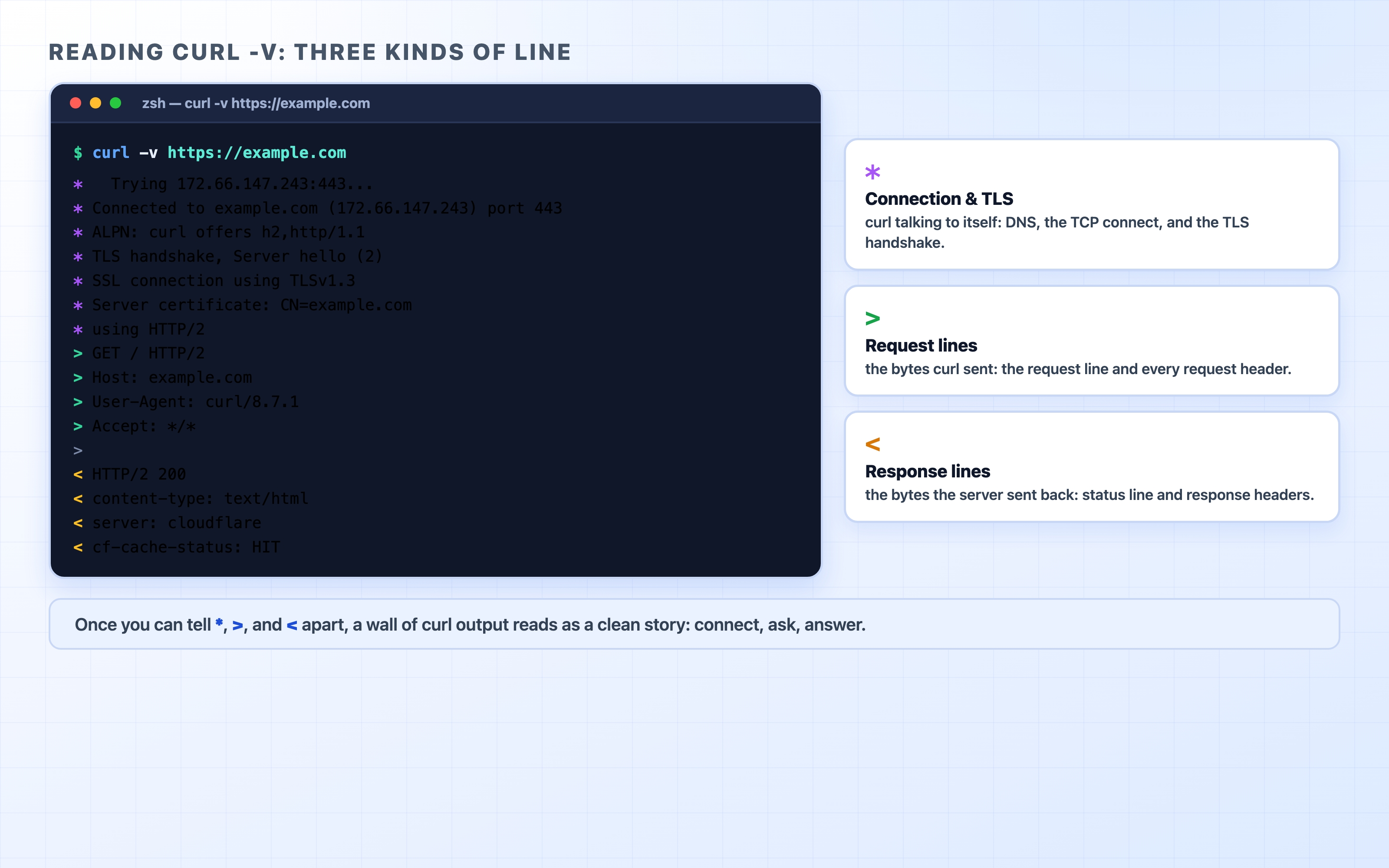
You can read this output easily by noticing that every line starts with one of three symbols.
Reading the three kinds of line in curl -v output
Run it against a real site:
curl -v https://example.com
bash
Here are the lines that matter, lightly trimmed:
* Trying 172.66.147.243:443...
* Connected to example.com (172.66.147.243) port 443
Lines starting with * show curl setting up the connection. This includes the IP address it resolved, the TCP connection, the TLS handshake, the certificate check, and the negotiated HTTP version. You are seeing the DNS, TCP, and TLS layers printed in order.
Lines starting with > show the request curl sent. This includes the request line (GET / HTTP/2) and each request header.
Lines starting with < show the response the server sent back. This includes the status line (HTTP/2 200) and the response headers.
A screen full of curl output stops looking like noise once you recognize * > <. You scan the * lines to confirm the connection succeeded, the > lines to check what you actually sent, and the < lines to see how the server replied. Most debugging relies on checking these three areas.
Note that the request and response bodies are not printed with > and < symbols. Those arrows are only for headers. The response body is the raw HTML or JSON that curl dumps at the very end. If you want to hide that body text while still reading the headers, you can use the flags covered in the next section.
The flags as a toolkit
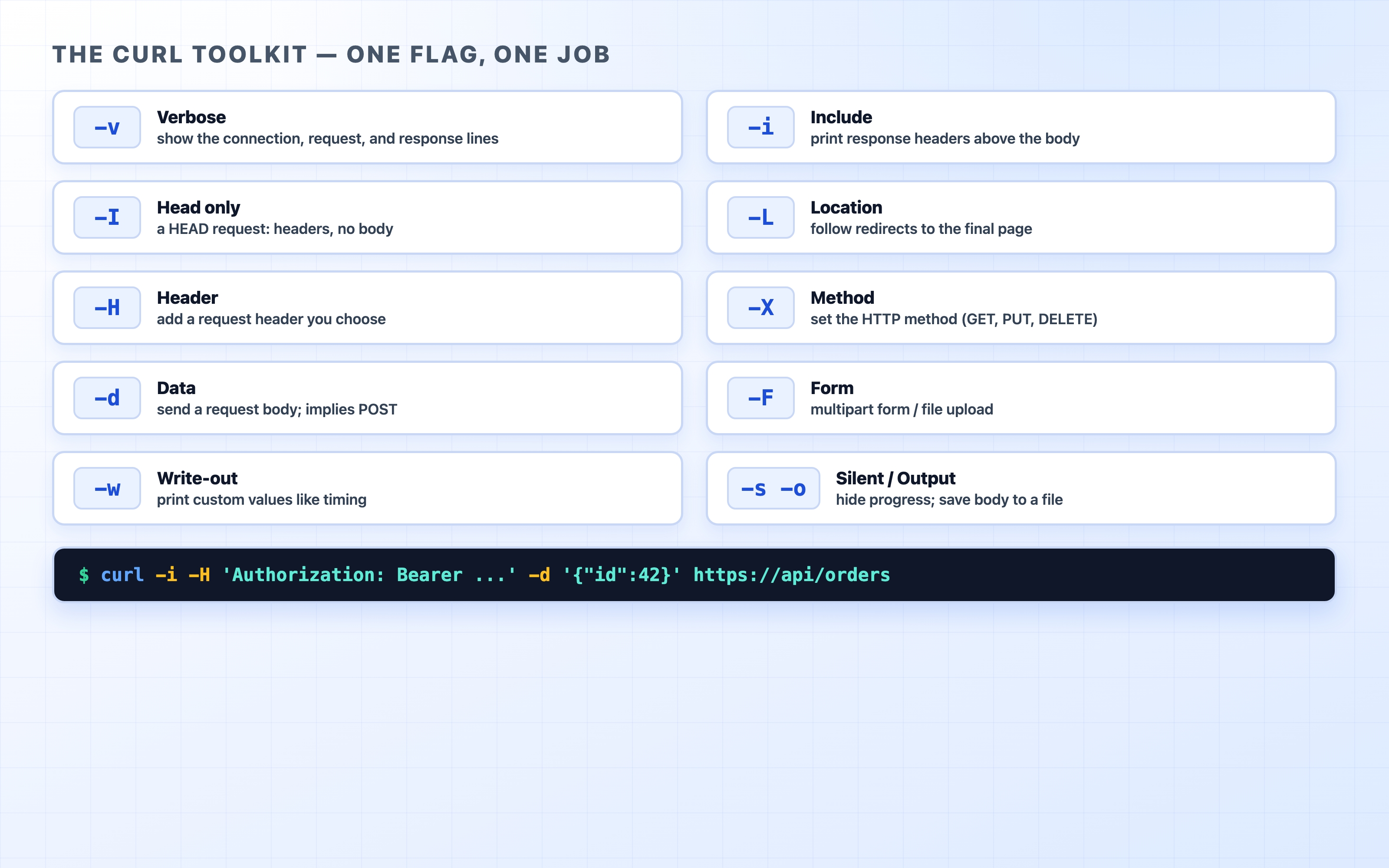
The -v flag is a firehose of information. The other essential flags are smaller tools that each do one specific job. You will reach for these often, so it helps to learn them as a set.
A cheat sheet of the essential curl flags
-i (include) prints the response headers above the body. It leaves out the connection details that -v adds. Use this when you want to see the status code and headers but do not care about the TLS handshake.
-I (capital i) sends a HEAD request. You get the headers and no body at all. This is perfect for checking a status code, a redirect, or a Cache-Control header without downloading a large file.
-L (location) follows redirects. By default, curl shows you a 301 redirect and stops. Adding -L tells it to keep going until it lands on a final response.
-H sets a request header. You can repeat this flag to add as many headers as you need.
-X sets the HTTP method, like -X PUT or -X DELETE. You rarely need it for GET or POST because curl picks those automatically, but the option is there when you need a specific method.
-d sends a request body. As a side effect, it automatically switches the method to POST. This is how you send JSON or form data.
-F sends a multipart form. This is the format used for file uploads.
-w (write-out) prints custom values after the request finishes. Its most common use is displaying a timing breakdown.
-s silences the progress meter. -o writes the body to a file, and using -o /dev/null throws the body away entirely. These two flags keep your terminal output clean when you only care about headers or timing.
Here is how a few of these look in practice.
Headers only, with -I
curl -I https://example.com
bash
HTTP/2 200
date: Wed, 24 Jun 2026 02:23:23 GMT
content-type: text/html
server: cloudflare
last-modified: Fri, 19 Jun 2026 18:46:03 GMT
allow: GET, HEAD
accept-ranges: bytes
age: 1288
cf-cache-status: HIT
text
This returns no body, just the metadata. It is the fastest way to answer questions like "what status does this URL return?" or "is this response cacheable?". You can read the cf-cache-status: HIT and age lines to get your answer in a single round trip.
Following a redirect with -L
Many common bugs are actually redirect bugs. If you ask for http://github.com, here is what happens:
curl -IL http://github.com
bash
HTTP/1.1 301 Moved Permanently
Location: https://github.com/
HTTP/2 200
text
The output shows the headers for each hop. First is the 301 redirect pointing to the HTTPS version, followed by the 200 success code for the final page. This is the same redirect chain you would see as stacked rows in a browser's Network panel. If a site ever gets stuck in a redirect loop, this command will catch it. You will see the same 301 repeat without ever reaching a 200.
Reproducing a request exactly
When an API call fails, you usually need to know if the bug is in how the client built the request or in how the server handled it. You can answer this by rebuilding the request piece by piece until curl reproduces the failure.
A typical request has three parts you need to match: the method, the headers (especially Content-Type and authentication), and the body. Here is a POST request with all three. It goes to a public echo service that replies with whatever data it received:
curl -s -X POST https://httpbin.org/post \
-H "Content-Type: application/json" \
-H "Authorization: Bearer demo-token-123" \
-d '{"name":"ada","role":"admin"}'
bash
The httpbin.org/post endpoint mirrors the request back so you can confirm exactly what arrived:
{
"data":"{\"name\":\"ada\",\"role\":\"admin\"}",
"headers":{
"Authorization":"Bearer demo-token-123",
"Content-Length":"29",
"Content-Type":"application/json",
"Host":"httpbin.org",
"User-Agent":"curl/8.7.1"
},
"json":{
"name":"ada",
"role":"admin"
},
"origin":"113.29.242.17",
"url":"https://httpbin.org/post"
}
json
The reflected headers and json fields show the server received exactly what you intended. To use this technique for debugging, start from a failing browser request. Strip it down to the bare method, headers, and body, and run it in your terminal. If it fails the same way, the server is broken or the request format is genuinely malformed. Either way, your front-end code is likely not the issue. If the curl command succeeds, the browser was probably adding something you left out, like a specific cookie or header.
A note on POST requests: Because the -d flag sends a body, it automatically sets the HTTP method to POST. You do not actually need to include -X POST alongside -d. Many developers add it out of habit, which is harmless, but curl -d is enough on its own. You generally only need -X when you want a method curl would not pick automatically, like PUT or DELETE.
For a file upload, swap -d for -F. This builds a multipart/form-data body:
The tool reads the file, sets the multipart boundaries, and sends it exactly the way an HTML <form enctype="multipart/form-data"> would. This is helpful when you need to debug an upload endpoint outside of a browser.
A timing breakdown with -w
The browser's Network panel has an excellent Timing tab, but it only lives in the browser. The curl -w command gives you a similar phase breakdown in the terminal. Because it runs in the command line, you can script it, run it in a loop, or execute it from a remote server.
The -w flag accepts a format string containing %{...} variables. After the request finishes, curl fills in the actual values. A handful of these timing variables map closely to the network phases you already know:
curl -w "
dns: %{time_namelookup}s
connect: %{time_connect}s
tls: %{time_appconnect}s
ttfb: %{time_starttransfer}s
total: %{time_total}s
" -o /dev/null -s https://example.com
bash
The -o /dev/null -s portion throws away the response body and hides the progress meter, leaving only the timing output:
dns: 0.003322s
connect: 0.011628s
tls: 0.026280s
ttfb: 0.039276s
total: 0.039373s
text
These numbers are cumulative. Each value represents the total time from the start of the request up to that specific point, rather than the length of an individual phase. To find the duration of a specific phase, you look at the gaps between the numbers:
time_namelookup: DNS resolution finished here. (0.003s)
time_connect: The TCP handshake finished here. The TCP phase took about connect minus dns. (~0.008s)
time_appconnect: The TLS handshake finished here. The TLS phase took about appconnect minus connect. (~0.015s)
time_starttransfer: The first byte of the response arrived here. The gap between appconnect and this number is the Time to First Byte (TTFB), which represents the server thinking. (~0.013s)
time_total: The total time for the entire request, including downloading the response body.
The shape of these numbers tells a story. If time_appconnect is much larger than time_connect, the TLS handshake was slow. If time_starttransfer is far past time_appconnect, the backend took a long time to respond. If the gap between time_starttransfer and time_total is large, the response body was big or the network link was slow. If you run the exact same command twice in a row, you will usually see the DNS time drop to near zero on the second run because your machine cached the IP address.
Isolating a backend with --resolve
In production, your request rarely hits the application server directly. It usually goes through DNS, then a CDN or reverse proxy, and finally to the backend. When a page breaks, you need to know which step in that chain is at fault. The --resolve flag is a powerful isolation trick that lets you skip the front of the chain and talk directly to a specific machine.
The --resolve flag tells curl to use an exact IP address for a specific hostname and port, bypassing DNS entirely. It overrides name resolution for a single command:
curl -s -o /dev/null \
-w "ip=%{remote_ip} status=%{http_code}\n" \
--resolve example.com:443:104.20.23.154 \
https://example.com
bash
ip=104.20.23.154 status=200
text
The request still uses the hostname example.com everywhere it matters, including the Host header, the TLS certificate check, and SNI. The server treats it as a normal request for that site. However, the network bytes go to the IP address you provided instead of the one DNS would have returned.
This allows you to point at one specific server behind a load balancer or CDN and ask it for a response directly. If you have three backend IP addresses and one is misbehaving, you can use --resolve on each one in turn to find the broken server. If the public URL fails but hitting a backend IP directly works, the problem is somewhere in front of the backend. It might be DNS, the CDN, or the proxy, but it is not the application itself. This single comparison eliminates entire sections of the request path.
--resolve versus editing your hosts file: Both methods pin a hostname to an IP address. However, --resolve does it for a single curl command. It requires no root access, and there is nothing to undo afterward. Editing your /etc/hosts file changes the routing for your entire machine until you remember to revert it. Forgotten hosts file overrides are a frequent cause of mysterious local bugs.
Try it now
Open a terminal. Every command below runs against a real public endpoint, so you can test them immediately.
Read a verbose exchange. Run curl -v https://example.com. Find one * line, one > line, and one < line. Identify what each one represents: a connection step, data you sent, or data the server sent back.
Print a timing breakdown. Run this command and read the shape of the numbers:
Run it twice. Notice how the dns time drops close to zero the second time because of your machine's DNS cache.
Reproduce a request. Send a JSON POST and read the echoed response:
curl -s -X POST https://httpbin.org/post -H "Content-Type: application/json" -d '{"hello":"world"}'
bash
Confirm that the json field in the reply matches what you sent. You just rebuilt a request from scratch and proved exactly what arrived at the server.
In three commands, you read a full HTTP exchange, measured where the time went, and reproduced a request precisely. You did all of this without a browser.
What's Next
You can now reproduce and isolate requests directly from the terminal. Next, we will use that skill to read the HTTP errors you will encounter most often, including the two gateway errors that get confused all the time: 502 versus 504.