We have spent the last several sections following one request as it travels: out of your browser, through DNS and TCP and TLS, across proxies and gateways, into a server, and back again. That is a lot of machinery to move a few kilobytes. So here is the obvious question that opens this whole section: what if you didn't have to do any of it? The fastest request is the one you never make, and that is what caching is about — not redoing work you have already done.
Overview
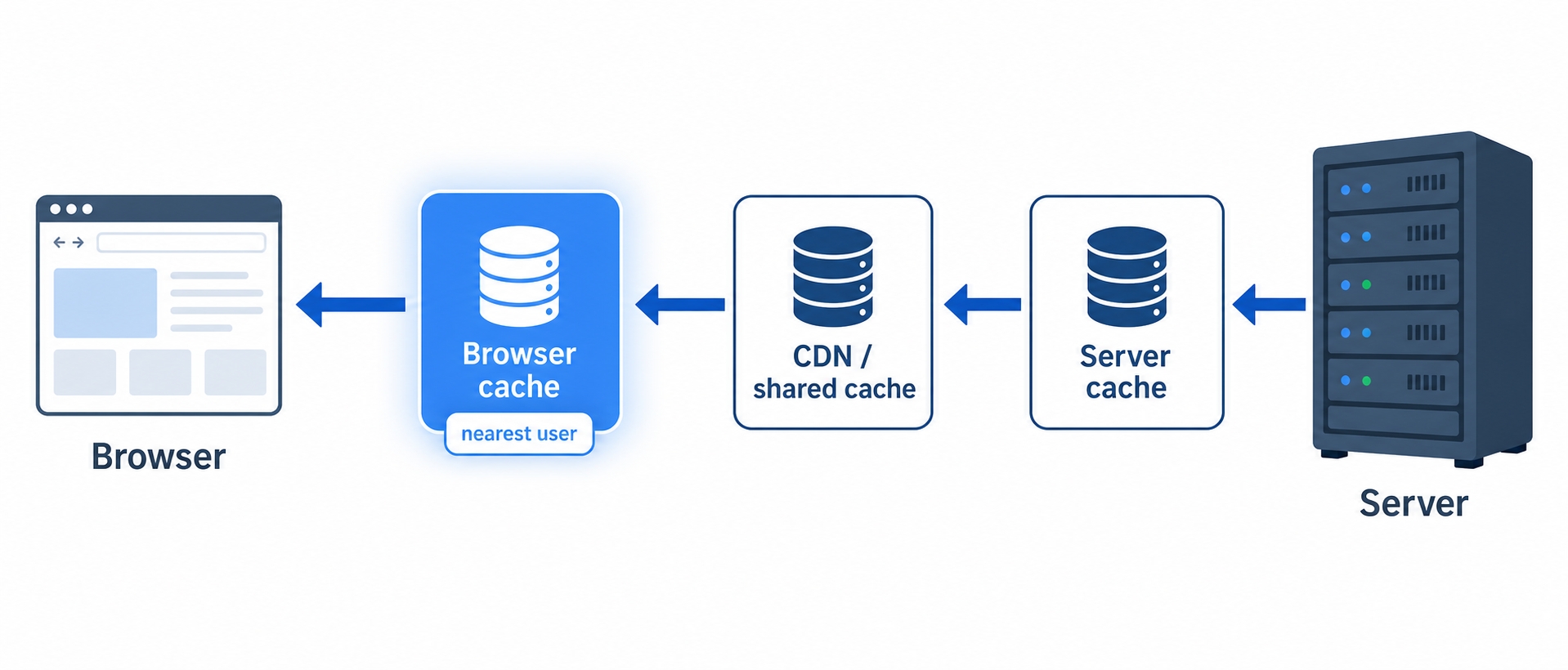
A cache is a stored copy of a response, kept somewhere closer or cheaper than the original, so the next request for the same thing can be answered from the copy instead of doing all that work again. The same response can be cached in several places along the path it travels, and the one we focus on in this chapter is the cache nearest the user: the one built right into your browser.
Where caches sit on the path from server to browser with the browser cache highlighted
Here is what this chapter covers:
The layers a response can be cached at, from the browser to shared caches and CDNs to the server itself.
The tension that runs through all of caching, and the words used to talk about it: fresh, stale, and revalidate.
How the browser decides, when it needs a resource, whether to serve it from cache, check with the server, or fetch it fresh, and what a hard reload and a normal reload actually do.
The same response, cached in many places
When a server sends back a response, that response doesn't have to be a one-time thing. Anything along the path can keep a copy and reuse it. There are three broad layers worth naming, working from the server out toward you.
Closest to the server, there is the server-side cache. Building a response can be expensive: a database query, a template render, a call to another service. So the server often stores the finished result and hands out the saved copy on the next request, instead of rebuilding it. This lives entirely on the server's side and the rest of the path never sees it.
Why Caching Exists and the Browser Cache | dalabs.academy
In the middle, there are shared caches: machines between the server and the user that store responses and serve them to many people. A reverse proxy can do this. A CDN, a content delivery network, is a fleet of cache servers spread around the world that does it at scale, keeping copies close to users geographically so a request from Tokyo doesn't have to reach a server in Virginia. These are shared because one stored copy answers requests from many different users. We give CDNs their own chapter at the end of this section.
Closest to you, there is the browser cache: your own browser's private store of responses it has already downloaded, sitting on your own machine. It is private because it holds only your responses, and it is the first place your browser looks before it does anything else. That makes it the fastest cache of all, because a hit here means no network request happens at all. This is the layer we spend the rest of the chapter on.
The thing to hold onto is that these layers stack. A single request can be answered by your browser cache without a packet leaving your laptop; if not, by a CDN edge near you without reaching the origin; if not, by the server's own cache without rebuilding the response; and only if all of those miss does the full, expensive work happen. Each layer is a chance to skip the work below it.
Fast versus stale: the one tension behind all caching
Caching has an obvious upside and one nagging problem, and almost everything in this section is about managing the trade-off between them.
The upside is speed. A cached copy is faster to serve, cheaper to produce, and lighter on the network. The problem is that the copy can fall out of date. The original might change while your copy sits there unaware. Serve your saved copy of a news homepage and the headline might be an hour old. Serve a saved copy of a price and you might quote the wrong number.
So every cache is balancing two things it cannot fully have at once: it wants to be fast (reuse the copy) and it wants to be correct (never show something out of date). Lean too hard on reuse and you risk showing stale content. Check with the server every single time and you have thrown away most of the benefit of caching at all. The whole craft of caching is deciding, for each piece of content, how far to lean.
Three words carry this idea through the rest of the section, so it is worth meeting them now:
A copy is fresh when the cache is still allowed to use it without checking. The server, when it sent the response, said in effect "this is good for the next ten minutes," and those ten minutes haven't passed. A fresh copy can be served immediately, no questions asked.
A copy is stale when that window has passed. Stale does not mean wrong or thrown away. It means the cache is no longer confident the copy is current, so it shouldn't just hand it over without checking first.
Revalidating is that check. Instead of downloading the whole thing again, the cache asks the server a small question: "I have this copy from earlier — is it still good?" If the server says yes, the cache keeps using the copy it already has and skips the download entirely. If the server says no, it sends the new version.
How the server sets that freshness window, and how a cache asks "is my copy still good?" without re-downloading, are exactly what the next chapter is about. For now, the three words are enough: fresh means use it, stale means check first, revalidate is the check.
What the browser does when it needs a resource
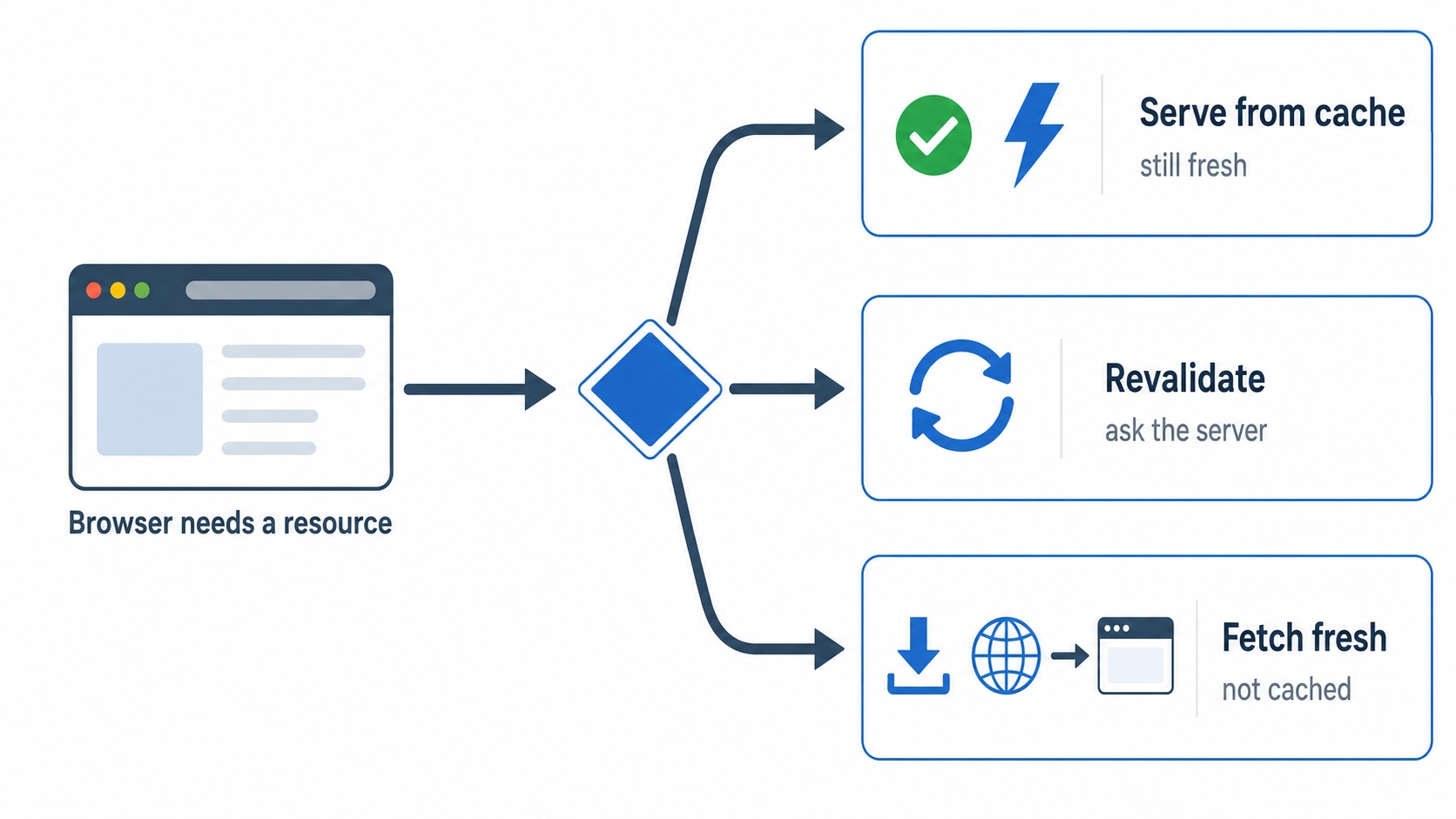
Now zoom all the way in to the browser cache and watch the decision it makes. Every time your browser needs a resource — an HTML page, a stylesheet, a script, an image — it runs through roughly the same choice before it touches the network.
The browser's three-way choice to serve from cache or revalidate or fetch fresh
There are three ways it can go.
Serve straight from cache. The browser already has a copy and that copy is still fresh. It uses the stored copy immediately and never contacts the server. This is the best case, and it is the whole point of caching: the resource appears with no network request at all. This is the part beginners often find surprising: the browser doesn't always ask the server whether its copy is okay. If the copy is fresh, it just uses it. Not asking is the feature, not a bug.
Revalidate. The browser has a copy, but it is stale, so it can't be served blindly. Rather than throw it away and download everything again, the browser sends a small conditional request to the server: "here is the copy I have — has it changed?" If the answer is no, the server replies with a tiny "still good" message and the browser reuses the copy it already had. A round trip happened, but no body was re-downloaded. If the answer is yes, the server sends the fresh version in full.
Fetch fresh. The browser has no usable copy at all. Maybe it has never seen this resource, or the response was explicitly marked as never-cache. Either way, there is nothing to reuse. It makes a normal request and downloads the whole thing, the same as if caching didn't exist.
Most of the speed you feel on a second visit to a site comes from that first branch. Open a page you visited yesterday and a lot of it (the logo, the fonts, the scripts, the stylesheet) is often served straight from your browser cache, fresh, with no network involved. The page assembles itself out of copies you already have.
Hard reload, normal reload, and the back button
Here is where the browser cache stops being abstract, because you steer this decision every day without realizing it. The same page can hit the cache differently depending on how you ask for it, and the difference between a hard reload and a normal reload trips up a lot of people.
A normal reload — pressing the reload button or F5 — does not throw your cache away. It leans toward revalidation. The browser keeps the copies it has and, for the page and its resources, tends to check with the server: "is my copy still good?" Where a copy is confirmed unchanged, it gets reused, so a normal reload is often much lighter than a first visit. It is asking "anything new?", not "give me everything again."
A hard reload — typically Ctrl+Shift+R (or Cmd+Shift+R on a Mac) — deliberately bypasses the cache. The browser ignores the copies it has and re-downloads everything from the network as if it had never seen the page. This is the one you reach for when you suspect the cache is serving you something old: you have deployed a fix but the browser keeps showing the previous version, so you force a clean fetch. The cost is that it is the slowest option, because nothing is reused. It is a debugging tool, not how you should browse.
Common confusion: the two reloads are not the same. A normal reload says "check if my copies are still good and reuse the ones that are." A hard reload says "ignore my copies and download it all again." If you are testing a change and not seeing it, a normal reload may keep serving you a fresh-by-the-cache's-clock copy. The hard reload is what guarantees a clean fetch. Browser behavior here varies a little between Chrome, Firefox, and Safari, but the mental model holds across them.
Then there is back and forward navigation, which behaves differently again. When you hit the back button, you are usually not asking for a fresh version of the previous page at all — you want the page exactly as you left it, instantly. So browsers lean hard on the cache here, and many go further with a back/forward cache (often shortened to bfcache): they keep the previous page fully alive in memory, scroll position and all, and snap straight back to it without re-running anything. That is why back and forward usually feel instant in a way that even a cached reload does not.
One last distinction you will see in DevTools and it is worth a sentence. Cached entries can live in two places. The memory cache holds resources in RAM for the current page session: extremely fast, but it disappears when you close the tab. The disk cache stores them on disk, so they survive across sessions and you still have them tomorrow. The browser decides which to use, and you will see both labels in a moment. The practical point is simply that both mean "served from a local copy, no network request."
Try it now: read the Size column
You can watch all of this in about thirty seconds, and it is the clearest way to feel that the browser cache is real.
Open any site you have visited before in Chrome or Firefox.
Open DevTools (F12, or right-click and choose Inspect) and click the Network tab.
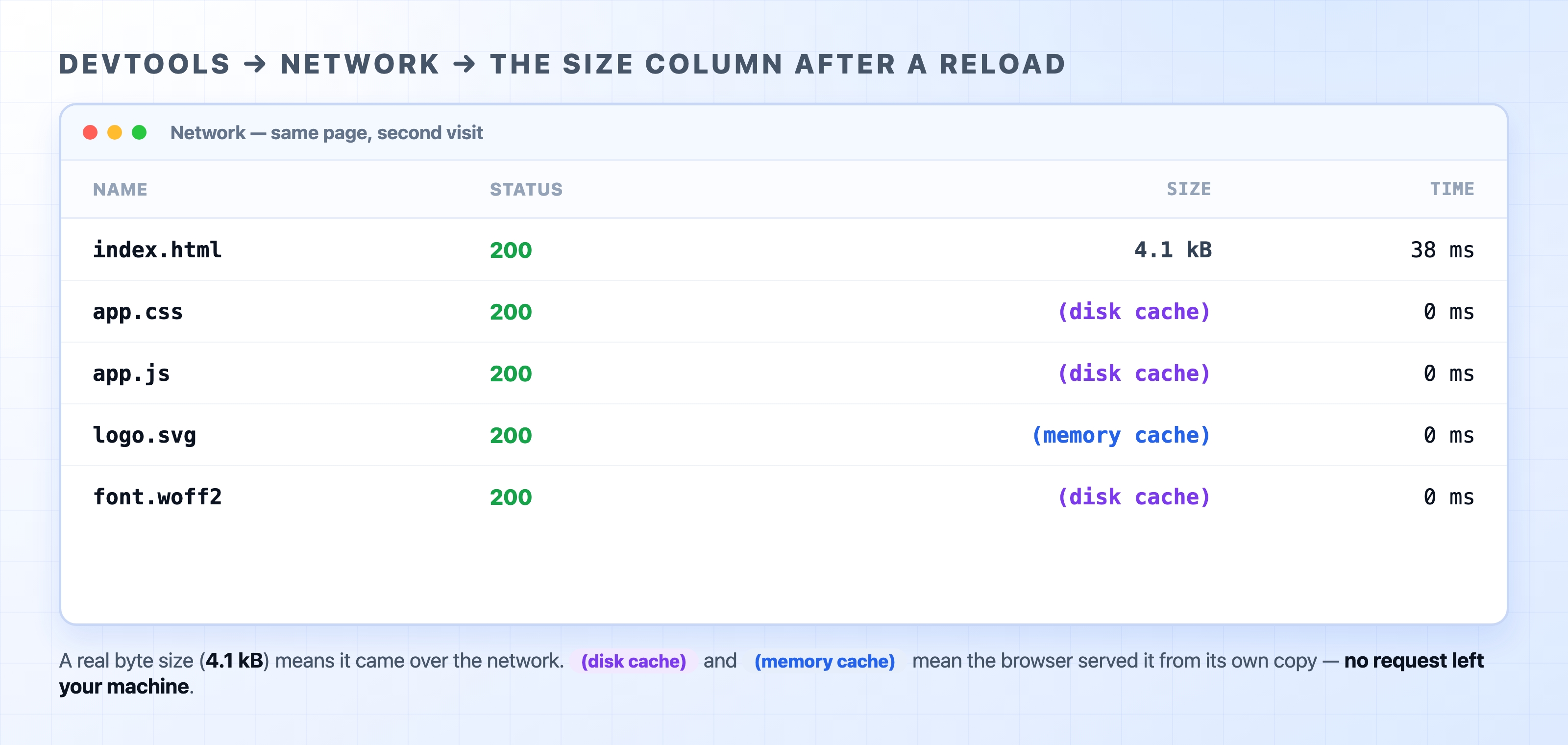
Reload the page with a normal reload (the reload button, not a hard reload), and look at the Size column for each row.
For resources that came over the network, the Size column shows a real byte count, like 4.1 kB. For resources the browser served from its own copy, it shows (disk cache) or (memory cache) instead of a size — that is a cache hit, and no request left your machine.
The DevTools Network Size column showing disk cache and memory cache hits
Now do it twice more and watch the difference. Do a hard reload (Ctrl+Shift+R / Cmd+Shift+R) and the cache labels mostly vanish — every row shows real bytes, because you forced a download of everything. Then navigate away and press back, and the page reappears almost instantly, often with little or no network activity at all. The Size column is your window into the decision the browser just made: real bytes mean it did the work, cache labels mean it didn't.
What's Next
You can now see that the browser caches, and steer it with a reload, but not yet how the server controls it. The next chapter, "HTTP Cache Headers and Validation," opens up the headers that set the freshness window and the conditional request that lets a stale copy be revalidated without re-downloading it.